
Digital Nesting

May 11th, 2009

090511-synchronizefolder

Yesterday I wanted to give Heather the ultimate Mother’s Day: unlimited napping potential and uninterrupted solitude. This might seem a little strange, but given the state of things with the nesting and the impending baby as well as the fact that we spend our days working together, I can’t think of a better thing to give Heather. Except breakfast at her favorite diner. I hope that place never closes, because we survived on it in Leta’s early months and because it has three foods Leta will eat on the menu.

Leta and I spent the morning on computers. Leta is getting bored with the simpler Flash games and is requiring a narrative, a problem to solve and more hand-eye involvement. I found a couple of super girlie places online and Leta did well. While she was entrenched in her games, I started to fix metadata in old photos.

I started shooting RAW in the last part of 2006 using the Camera RAW plug-in and then moving to Lightroom. Both the Camera RAW plug-in for Photosohp and Lightroom will embed the tonal work, cropping, and other metadata that was added while working on the photo in its RAW state. The problem is that when I moved the files to the Drobo, we lost those changes. So I’ve been manually re-synchronizing the hundreds of folders of tens of thousands of images we’ve shot in RAW since 2006 and making sure that the collection has the correct metadata.

In doing so, I’ve been seeing a lot of really great memories and learning alot about how to manage a large library of photos. I have changed computers a couple of times since 2006 and that complicates things a bit. I also used to do a lot of my photo work on Heather’s desktop as well, further complicating the digital workflow. I thought I’d share a simple list that relates a little bit to this post where I talked about how to handle folders and files.

  1. Store your central catalog(s) and images you’ll import into it on a super-reliable external storage unit that is automatically backed up every day. I’ve chosen Drobos for this task. Doing this insures that when I upgrade or move computers, teh library is always intact and does not require a certain computer to open files. If my computer dies, the library lives on. As a side note: store installer files of your apps on this drive as well for a quick and convenient way to be up and running should an emergency strike.
  2. Since our library is so large (100,000 plus photos), I’ve split up the catalogs by year, importing each month/year folder with its corresponding folders of each shoot. Every year, I’ll start a new catalog that is stored on the exteral storage unit. Lightroom lets you do this fairly easily. The thinking here is that having the catalog spread out means faster navigating and preview rendering. As well as a concrete way to sort files and find files. Scenario: “I think I took that photo in February of 2007, but it might have been March. Or maybe late January?” With each month as a folder in the catalog, I can quickly select months and scan through thumbnails. There are ways in Lightroom to do this, but this method is quicker for me.
  3. If you do external editing (Photoshop or other), save that image as a separate file in the same folder as the source, so that if you ever need to move a folder, any further edits you have made are not lost. As a result of not doing this, I’m having to spend a great deal of time across a number of catalogs to find images that I edited two and three years ago to make sure I have the source file. Note: this goes for any tweaking inside your RAW editor. Save/Export the XML sidecar files to the same directory as the source image. This will save you hours and hours of time in the future. I’ve had to find old catalogs, open them, re-render thumbnails (in order to see those images with obvious and not-so-obvious edits) and save out metadata in order to move the metadata files to the correct folder on the Drobo.
  4. Back up everything every day. EVERY DAY. Use Apple’s Time Machine or SuperDuper! to clone your drive. I’m about to buy another Drobo for this purpose. I’ll automatically run that backup at 1 or 2 in the morning using SuperDuper!. I prefer it to Time Machine for these kinds of backups. Time Machine is great for a casual user, but I want bulletproof. I never ever ever want to lose a photo. Ever. Ever Ever Ever.
  5. Use built-in rating/ranking and color coding to organize the definite keepers for quick sorting and searching. Develop a system and stick to it. I have a minimum of 3 stars assigned to a photo that I post and once I have posted it, I color label it green. I’ve been doing that since 2006. The problem is that I didn’t always save those edits out to a separate file (see 3, above). I’ll probably start rejecting files as well as a way to simplify the library.

I believe that this digital nesting instinct is my response to the final weeks of prep for the baby. I want to be able to add the tons of photos we will take of her without having to think about each and every set. Just shoot them and add them in. Once a system is in place, it makes working so much easier.

Heather’s system is simpler and likely better. She does a folder for each shoot and dates each folder. She just uses Camera Raw and Photoshop. Camera Raw on her machine is set to spit out a sidecar file (same name as the original file but with an .xml extension) that holds all of her changes to the RAW file. She does not save the layered work file (yet) in the same directory as the source, but I’m working with her about that. However, her discipline in working like this means that the only concern as a librarian I have is that I got all the photo folders and is the metadata current for all the images.

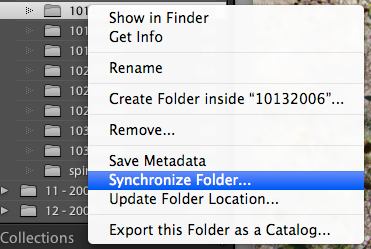
Lightroom has a quick way to look at a folder of images and grab the metadata from external files if there are any. It has become my best friend these past few days. Right click on a folder in Lightroom and choose “Synchronize Folder…”

Anybody have any other tips for dealing with large photo libraries? Please share! o


Tags: , , ,

This entry is filed under daily. You can follow any responses to this entry through the RSS 2.0 feed. Both comments and pings are currently closed.

17 Responses to “Digital Nesting”

  1. meowsk says:

    As my photo library gets bigger and bigger I am going to have to face some of these things. Right now I am just storing my photos on my laptop hard drive – risky I know. I am planning on getting a terabyte drive that I can use to store my photos and music and using my old external hard drive to backup my system but that probably won’t be for a few months. So I am just hoping that my computer doesn’t crash in the meantime. How I wish I could afford a Drobo! It would make me feel so much more secure about digital photography.

    Right now I am saving the Photoshopped version of my files in the same folder the original photo was uploaded to. I was shooting RAW but decided it wasn’t worth it because of the huge file size – maybe when I have more space to work with. I think I will keep all of the thumbnail and optimized versions of my photos for my website in a separate folder.

    Now I just have to take the time to rate my images after I import them and color code an image once it has been placed on my website.

    So much work! And I haven’t even started to think about organizing metadata yet.

    I appreciate these posts about your organization system. It has been really helpful in planning ahead for my photo organization.

    Do you have any suggestions for backing up data on a budget? Like what you did before you had so much disposable income? I wish I could afford a Drobo but in this shitty economy I don’t forsee it happening anytime soon.

    • blurb says:

      Get a couple of external hard drives and rotate your clone/backup. External drives are very inexpensive. You can also buy a smaller external and just backup critical files if you lost you would be screwed. You may not need a 1 Terabyte external drive and the other sizes are really cheap right now.

  2. OK, I’m a little confused I think. You say:

    “Both the Camera RAW plug-in for Photoshop and Lightroom will embed the tonal work, cropping, and other metadata that was added while working on the photo in its RAW state. The problem is that when I moved the files to the Drobo, we lost those changes.”

    Is this solved by strictly adhering to #3 above? Just want to make sure…

    Also, regarding the Drobo, I assume it’s plugged into its own net tap somewhere? If so, does it just act like a server, accessible via Finder just like any other net share? Does it work ok should you choose to use it as a source to play slideshows via AppleTV or FrontRow/iPhoto from your laptop connected to the TV?

    I currently have everything on an internal drive on my Mac Pro, being backed up to an external drive via SuperDuper every night. I’ve been tempted to buy the Drobo but I keep hearing that’s it’s crazy slow for use as an everyday thing. I guess you’re happy with it?

    Thanks for this post; really informative.

    Paul in Kirkland

    • blurb says:

      Point of clarification: We lost some of the changes due to my flaky workflow across a bunch of machines. I had to search for those original folders and files and copied them into the permanent library folder structure, then use the “synchronize folder…” command.

      You also need to make sure that you’ve set your RAW editor of choice to spit out XML sidecar files. Aperture doesn’t do this as nicely as Lightroom and the Camera Raw plug-in.

      The Drobo acts like another hard drive. I haven’t heard good things about DroboShare, so the Drobo hangs off my machine via FireWire 800. As such, I routinely see 20-30MB/sec transfer rates. Which is fast enough for what I do. I have four 1TB Western Digital Caviar Black drives in the Drobo, if that means anything. I’m happy knowing that if a hard drive dies, I can fix it without a lot of stress or data loss.

  3. Mau says:

    Jon, I’m wondering about your offsite backups. Is one of your Drobos stored somewhere else or do you copy files every week? What’s your process. It’s one of the backup steps that takes me the most time and that I keep forgetting to do.
    Also, love the bath renovation, wow nice job.

    Thanks!

    Mau
    Vancouver, BC

    • blurb says:

      I’ll do a clone nightly and then periodically rotate the offsite Drobo so the two cloned Drobos take turns resting offsite. Probably overkill, but I never want to lose a photo or file.

      Thanks about the bathroom spruce up. It’s only a temporary solution and all of it is going to be redone at some point. This was just to give us more storage under the vanity and give us two sinks.

  4. I shouldn’t read about someone else wanting to use a Drobo and SuperDuper! to back up another Drobo. It’s like looking into my soul and seeing someone smiling back at me and saying, “No, really, it’s okay for you to feel this way.”

    Hold me. Or at least hit me so I’m not selling a kidney for a DroboPro and a lifetime supply of hard drives.

    Wait, no, this keeps sounding like a good idea …

    Anyway … have you looked at CrashPlan for offsite backups? Email me if you want a backup code to try this out. I think you could find a friend willing to let you leech some overnight Internet bandwidth for you to back up with…

  5. i like the drobo idea but haven’t committed to it yet.

    i am using aperture and am dealing with photo organization too. i am trying to figure out the best way to organize projects. by year? by subject? use them like albums?

    using the rating system will help with off site long term archives. i haven’t figured that one out either.

    i love these posts jon. thanks!

  6. jmery says:

    Mozy (www.mozy.com) is another great on-line backup alternative. My wife does retouch work out of the house for a local photographer. I’m paranoid about losing any data.

    We have mirrored local disks which we backup to an external drive nightly. This is kept at home all the time and used for quick restores or as a convenient way to move large data sets between computers. Mozy is then used to back everything up online.

    Mozy runs nightly as well (an hour or so after the in-house backup) and uploads everything we care about to their servers. It’s all encrypted both in-flight and at rest (they say they can’t get to your data at all). The first backup takes *forever* (as in weeks depending on the data set size). After that, though, you’re golden.

    The best part to me is the price – $4,95/mo. for unlimited storage. We’re using about 300GB for photos and music with no complaints from them.

    Disclaimer – I do NOT have any relationship with Mozy other than being a very satisfied customer of their service.

    • blurb says:

      I’ve heard great things about Mozy. However, I’m not going to backup 1.2TB to them. It’s not feasible with our broadband speed. Maybe one day. :-)

  7. ehegwer says:

    As a pro Photographer, I’ve been there and done that.

    The #1 worst problem you will face is whenever you change your workflow. It seems like every program has a different way of handling metadata, keywords, and file organization.

    One easy solution is Photoshelter, an on-line storage and archival solution.

    Feel free to contact me if anyone has any specific thoughts/questions

    FWIW – I use Aperture (and have just shy of a million images stored) and a few xServe Raid storage systems connected via Fiber to my workstation.

  8. amybaby says:

    I’m so anal about organizing my photos. I use this folder structure: 2009 > 01 Jan > 11 [name of shoot] > then three folders here: raw (for the raw photos and xml files), jpg (for high res versions and/or photoshop files), and web (for web optimized that I size at 900×598).

    I’m terrible about backing up though. I’m pretty sure I haven’t plugged in the drive that I use with Time Machine in about 3 months. Bad girl. I know.

  9. tracy says:

    Jon ~ I’m printing this post & can’t wait to read at my leisure (ha! ha ha!) tonight after the baby’s in bed. I’m only a teensy bit geeky, am a huge amateur photographer, and I definitely need some work in both areas. Hopefully, you’ll still be taking questions in your comment section when I’m done reading!

  10. Sort of off-topic but I’d love to hear your opinion of DNG instead of individual brands’ RAW. I’m still learning about all this but DNG would help solve the separate sidecar issue b/c it embeds all that data into the RAW file itself, right? Clearly you’re not gonna go through your huge collection and convert them over, but would DNG help prevent these sorts of problems later on? Or is there a bigger reason to avoid using it?

    • blurb says:

      I’m learning about DNG as well. I got a great email about the file format from a friend who is a pro and he’s switched to DNG. I’m a fence sitter at this point because I want a universal standard that camera manufacturers and software makers agree on and standardize so we don’t have forced upgrades to Photoshop because a new camera comes out and Adobe wants the revenue.

      More research is needed. I sound grumpy. For me, the real big reason to not use DNG for now is that I have to run a conversion on every image I want to store in DNG. That’s painful. I want cameras to shoot a DNG and ALL SOFTWARE EVER to read them.

      I’m not sure there’s a reason to avoid using DNG, but I’m holding out. For a hero.

  11. Redmax1 says:

    Jon,

    Thanks so much for sharing the info about your workflow. I’m working in Aperture and have come to the following process.

    Every event, or outing, or whatever becomes a project in Aperture. I’ve got a couple of folders Personal, Work, etc that each have sub-folders by year. Then each project gets named Year-Month-Day-[Descriptive Name]. I know this may sound a little anal but it has made it very much easier to keep track of things for me.

    I’ve been shooting everything RAW since moving up to an SLR a couple years ago. My current flow is to import photos into the Aperture library and store the RAW photo into the Aperture main library. This lets me work on the photos on the laptop wherever I happen to be. I generally go through the photos and do a first round evaluation where I quickly rate the photo as either 3 stars, no stars, or discard. This allows me to quickly get down to a batch of photos that are worth taking a second look at. From here I’ll up-rate and down-rate photos to get the final mix. I generally use the 3 star rating as my threshold for “publication”. Anything 3 stars and up makes the cut to end up in the web gallery or wherever.

    I’ve been cranking through photos faster than the poor laptop drive can handle. To manage this I have a smart folder in Aperture that finds all photos that are more than 3 months old and are managed files instead of referenced files. This allows me to find everything I’ve shot that’s been on the laptop for a bit, and use the relocate masters command to move the original RAW out to pasture on a storage volume. Aperture is smart enough to create project folders on the target disk for everything so that I end up with a folder structure that looks pretty much like my Aperture library but is now outside of Aperture. All the metadata and tagging still live in Aperture. I should probably heed your advice to start exporting the XMP Sidecar.

    But here is where I run into an issue. I have tried exporting the sidecar files with the RAW but I haven’t found a way to use the sidecar file with Bridge/Photoshop CS3. So right now I’m concerned that even if I were to export things that the XMP sidecar would end up doing me no good and I’d still need to have aperture and the main library database to get back to my files. Anyone out there found a way to get the adjustments out of Aperture and into Photoshop?

    I’m using SmugMug for online sharing of things as well as using it as a sort of online and offsite storage repository. I’m still managing my own backups for the RAW masters but at least I know I’ve got JPG backups out there in the ether somewhere that I can go back to if I ever had a catastrophic local failure. I love SmugMug and with the Aperture plug-in it makes for a great workflow for me. My photos are up at http://kgmoore.smugmug.com/ for those who’re interested.

    Thanks again for sharing your process and I’m looking forward to hearing any tips or tricks from others.

    Kevin M.


Copyright 2001-2010 Armstrong Media, LLC. All rights reserved. Terms of Service. This is the paranoid section of the site.